
I have a Synology 8-bay NAS used for home-lab purposes, but also doubles as local home storage as well.
As part of upgrades, I was decommissioning a volume for a new one with higher capacity drives, however I had Plex installed on the volume to be decommissioned. I moved all the data using the internal file manager, but the package installation remained in place.
Migrate package to another volume
- Stop your application via the Synology package center UI.
- Login to Synology using SSH and elevate to root.
- Use "ls" against /VolumeX/@appstore to find your package folder name
- Use "mv" to move the data between the old and new volume, you may need to create the @appstore folder first.
- Remove the symlink from the current volume and create the new symlink to the new volume.
- Stop and start your package in the Synology Package Centre.
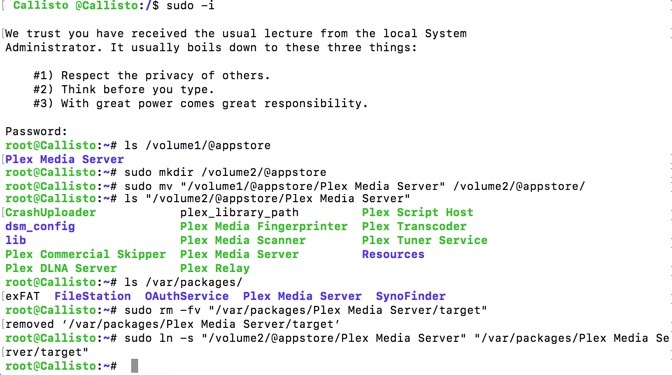
Below is an example the commands I used;
sudo mkdir /volume2/@appstore
sudo mv "/volume1/@appstore/Plex Media Server" "/volume2/@appstore"
sudo rm "/var/packages/Plex Media Server/target"
sudo ln -s "/volume2/@appstore/Plex Media Server" "/var/packages/Plex Media Server/target"
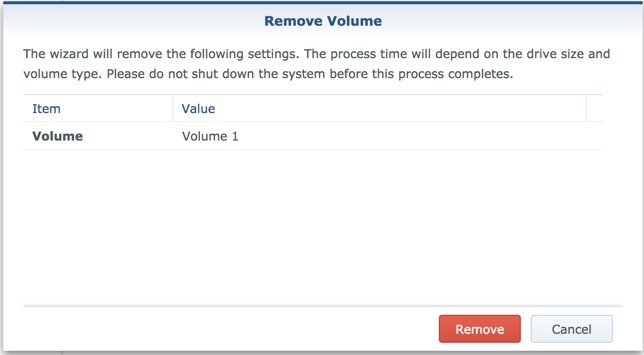
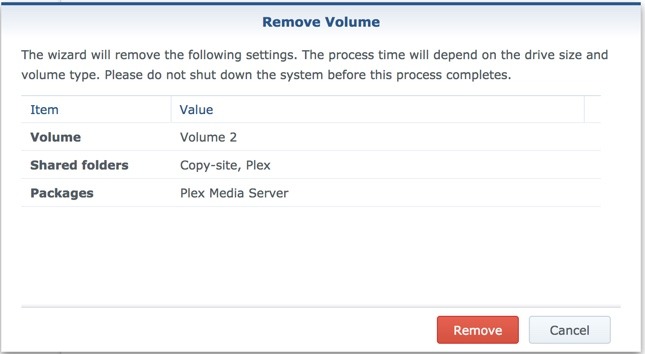
Now when you try to remove the volume, your package will now show as attached to the volume.
Regards
Dean
Thank you for the clear instructions! I think I speak for allot of people when I say that this has come in handy on more than one occation.
Thanks for the instructions, it worked perfectly. I created a bash script according to your instructions that should do the job in a faster manner. Here's the link
https://github.com/JeffersonDing/SynologyMerge
Thanks! Very useful!!!
I am not sure if that is specific to DSM 7 or the package I was moving (MariaDB), but I had to move a bunch of other folders as well:
mv /volume1/@appstore/MariaDB10 /volume2/@appstore
mv /volume1/@appconf/MariaDB10/ /volume2/@appconf
mv /volume1/@apphome/MariaDB10/ /volume2/@apphome
mv /volume1/@apptemp/MariaDB10/ /volume2/@apptemp
mv /volume1/@appdata/MariaDB10/ /volume2/@appdata
rm /var/packages/MariaDB10/target
rm /var/packages/MariaDB10/etc
rm /var/packages/MariaDB10/home
rm /var/packages/MariaDB10/tmp
rm /var/packages/MariaDB10/var
ln -s /volume2/@appstore/MariaDB10 /var/packages/MariaDB10/target
ln -s /volume2/@appconf/MariaDB10 /var/packages/MariaDB10/etc
ln -s /volume2/@apphome/MariaDB10 /var/packages/MariaDB10/home
ln -s /volume2/@apptemp/MariaDB10 /var/packages/MariaDB10/tmp
ln -s /volume2/@appdata/MariaDB10 /var/packages/MariaDB10/var
Thank you for the response. This would make sense as Mongo needs an area to save the persistent data.
be aware that some packages store their data in the same volume under @packagename
the volume where that lives is referenced in (eg for CloudSync) /usr/syno/etc/packages/CloudSync/setting.conf so if that does exist then you need to move that directory as well, and then update that config file to point to the new volume.
not all packages have something like this, but people need to double check before they remove the volume thinking its no longer being used.
Awesome, this was pointed out in another comment about MongoDB in particular, so definately one for users to be aware of.
Hi,
I wonder if anyone here can help me with a problem converting from EXT4. I was able to perform the move of all the apps to a new BTRFS volume using the code here. But, am stuck with issues described more fully on the question I posted on the Synology suppoort here: https://community.synology.com/enu/forum/1/post/152801
Thanks for any help,
Gus
You don't need to recreate the links manually.
After you move the folders (all @app*, @ and some other such as @database or @download) you just open the Package Center in DSM, select Installed and click Fix all.
DSM will re-download and re-install all moved packages and, as a part of the fix process, will search all volumes and move the package to the disk where its files are located.
After fix, you can open each package and check if its data were moved correctly.
Hi thanks for this, I didn't see that option in my setup, there was no "Fix all" option, it was a long time ago, but I think it showed an error or unavailable. But this would have been an older version of DSM.
If someone thinking about moving some packages to system partition:
Packages on system partition are here:
/usr/local/packages/@appstore
In theory (and if enough free space) one could move some packages there and no need to worry about deleting/moving volumes.
Not sure if moving things to the system partition is the best idea, especially if the package starts filling it up and runs it out of space. But I'll leave the comment here incase anyone is feeling brave. Thanks Tom!
Thanks. Worked perfectly on my Xpenoly/Syno DSM6.2 system. In my case the volume crashed and went into Read-only mode. So I could copy my shared folders out to different volume but could not run 'mv' has to run 'cp -R' instead. Just a note for someone on the same boat.
@nothrem, is this "Fix All" functionality specific to DSM 7.x or should it also work on DSM 6.2 ?
ps
Thanks for this post.
Based on the article and comments, I create this script:
#! /bin/bash
set -eu
for app in AudioStation DownloadStation
do
echo "Migrating $app"
mv "/volume1/@appstore/$app" "/volume2/@appstore"
mv "/volume1/@appconf/$app" /volume2/@appconf
mv "/volume1/@apphome/$app" /volume2/@apphome
mv "/volume1/@apptemp/$app" /volume2/@apptemp
mv "/volume1/@appdata/$app" /volume2/@appdata
rm /var/packages/$app/target
rm /var/packages/$app/etc
rm /var/packages/$app/home
rm /var/packages/$app/tmp
rm /var/packages/$app/var
rm /usr/syno/etc/packages/$app
ln -s /volume2/@appstore/$app /var/packages/$app/target
ln -s /volume2/@appconf/$app /var/packages/$app/etc
ln -s /volume2/@apphome/$app /var/packages/$app/home
ln -s /volume2/@apptemp/$app /var/packages/$app/tmp
ln -s /volume2/@appdata/$app /var/packages/$app/var
ln -s /volume2/@appconf/$app /usr/syno/etc/packages/$app
done
Thanks for sharing, for anyone looking to use this script, it will work for the apps configured on line 4 of the script, you may need to update this with your other applications installed.
Thank you for this! I started off with this approach and later learned that some apps rely on other folders that also need to be migrated.
This project / script takes those into consideration:
https://github.com/007revad/Synology_app_mover/tree/main
For scanning for symlinks that might remain pointing at the old volume I recommend running this command:
find . -name "*" -type l -exec ls -ld '{}' \; | grep volume1
If you are moving Synology Drive it appears you need to move the synology drives database from with in the Drive admin console before moving any files for the application from one volume to another.
Thanks for that additional bit of information! :)
I used a script to do the symlink moving
SRC_DIR="/var/packages/"
OLD_TARGET="/volume1/@appstore"
SUB="s/volume1/volume2/"
find $SRC_DIR -type l \
-lname "$OLD_TARGET/*" -printf \
'ln -nsf "$(readlink "%p"|sed $SUB)" "$(echo "%p"|sed $SUB)"\n'\
> script.sh
you can then just run the created script.sh or test a few lines first.
I just pasted the resulting lines in the terminal afterwards.
Thanks for sharing your way of doing this!